Analytics Suite – Setup
Updated: 01/06/2025
The Analytics Suite module enhances data analysis and key performance indicators visualization capabilities within Dynamics 365 Business Central. To ensure proper functionality, follow these setup steps:
- Install the extension in Business Central
- Configure Analytics Suite in Business Central
- Connect the Power BI application to your data
Install the extension in Business Central
- Sign in to your Business Central environment.
- Open AppSource and search for Analytics Suite.

- Select the Analytics Suite for Business Central extension and click Install app.
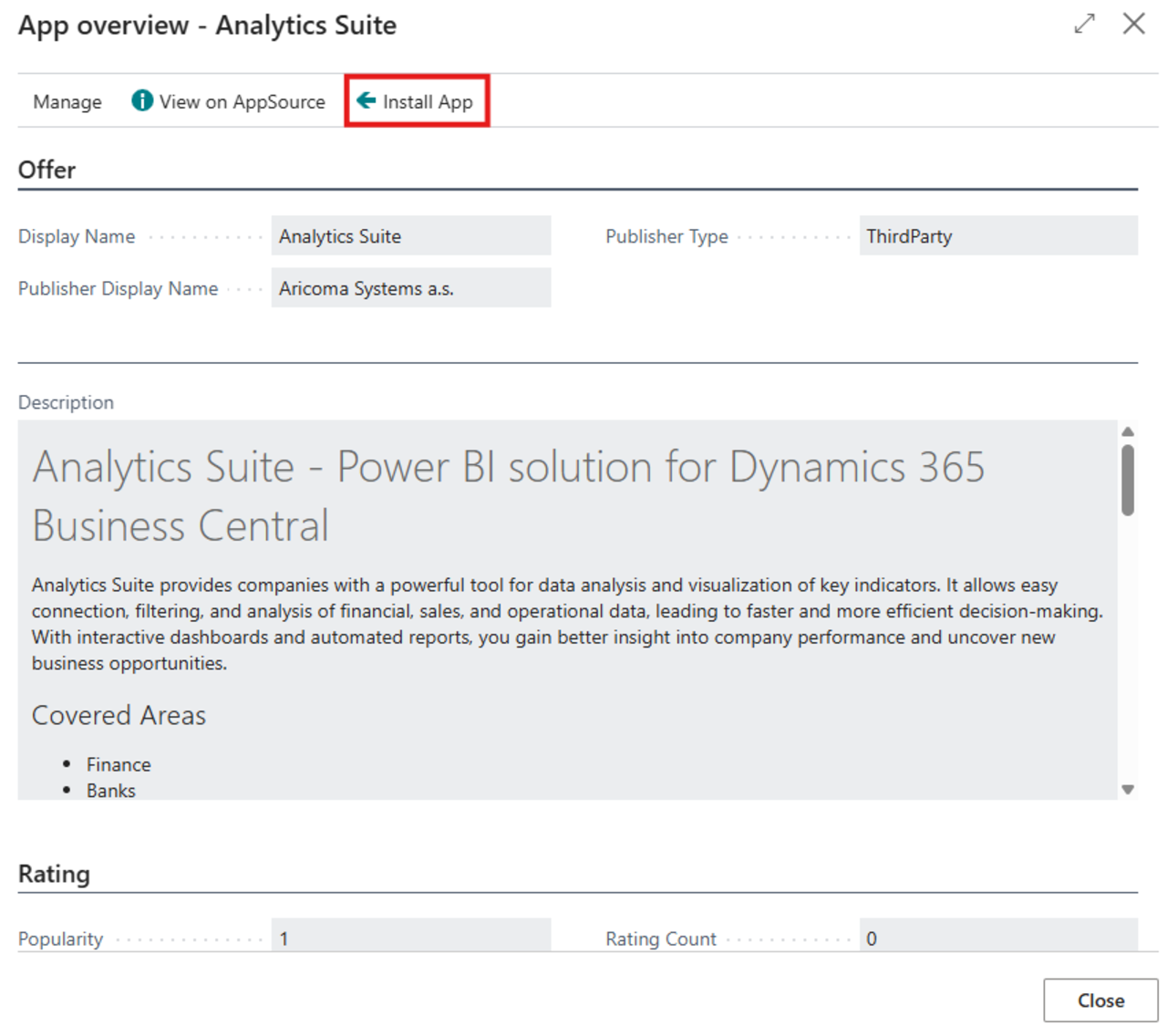
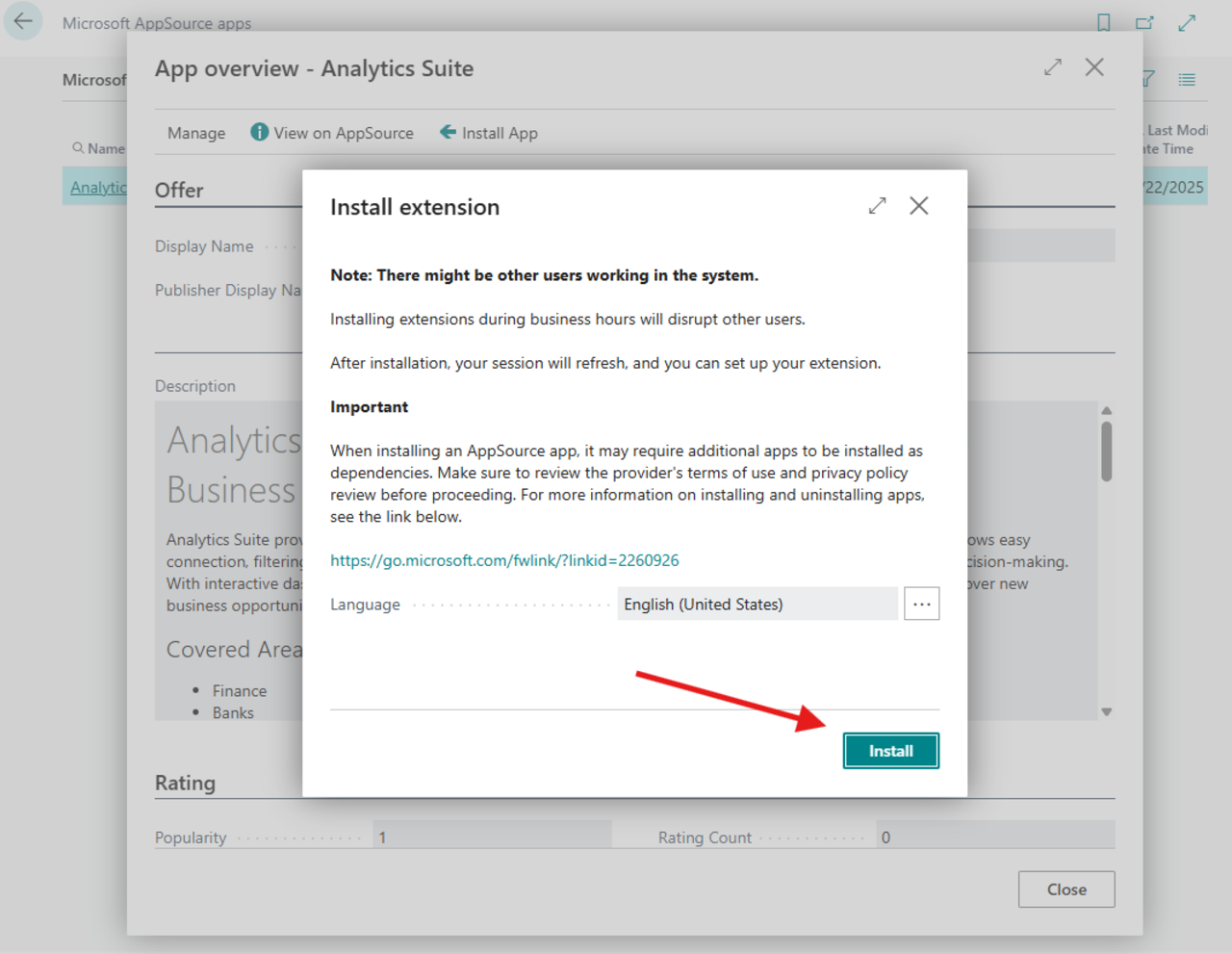
- Follow the installation wizard to complete the setup.
Configure Analytics Suite in Business Central
- Select the icon
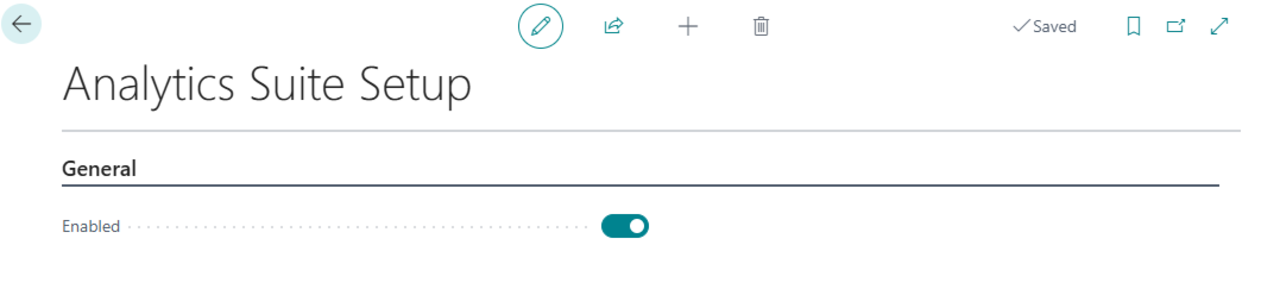
 , type Analytics Suite Setup, and then select the related link.
 - On the Analytics Suite Setup page, activate the module by checking the Enabled checkbox.
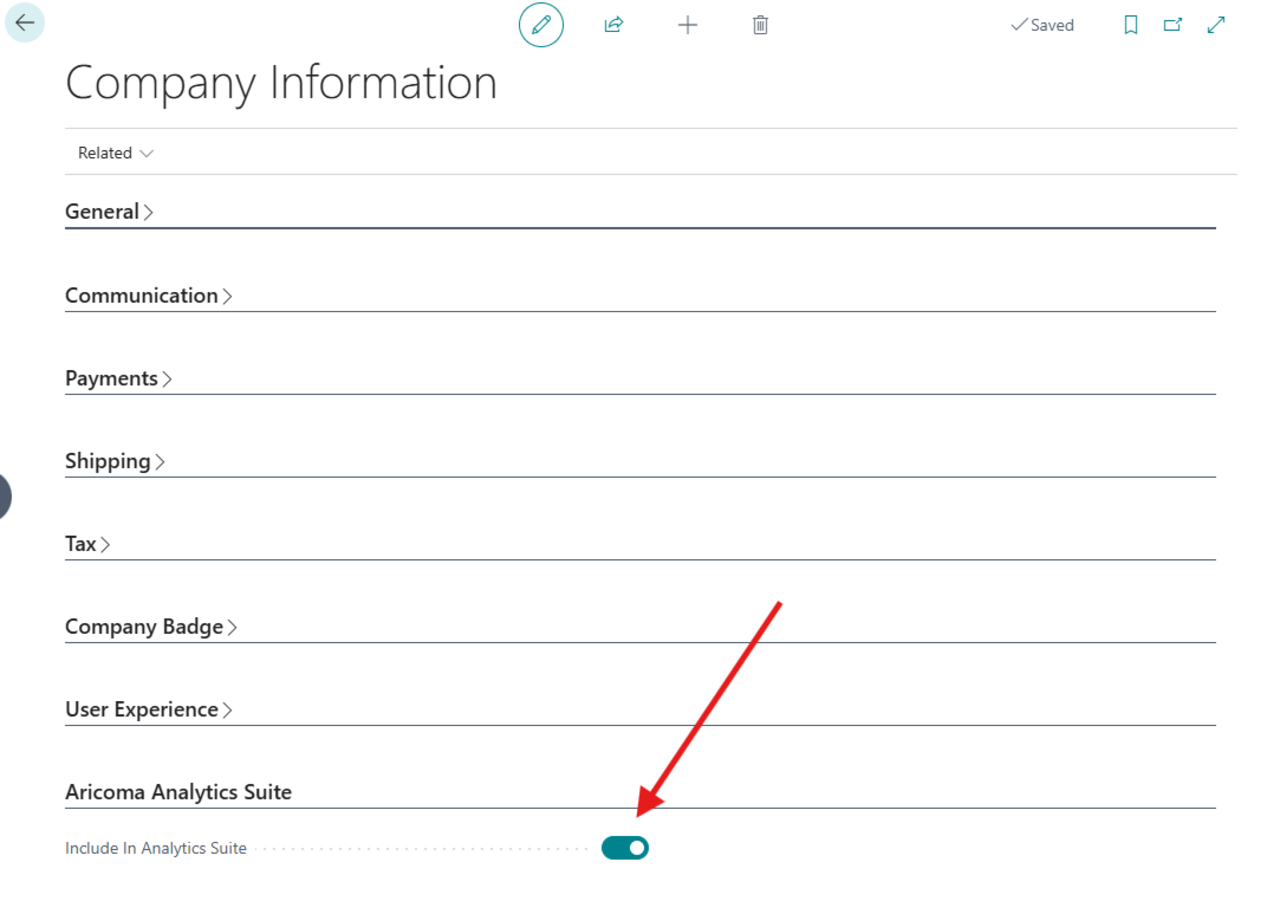
- Select the icon , type Company Information, and then select the related link.
- On the Company Information page (and for other companies you want to analyze in Analytics Suite), enable the option Include in Analytics Suite.
Connect the Power BI application to your data
To display reports and dashboards correctly, you need to link the Power BI application to your Business Central environment:
- Go to powerbi.com and sign in.
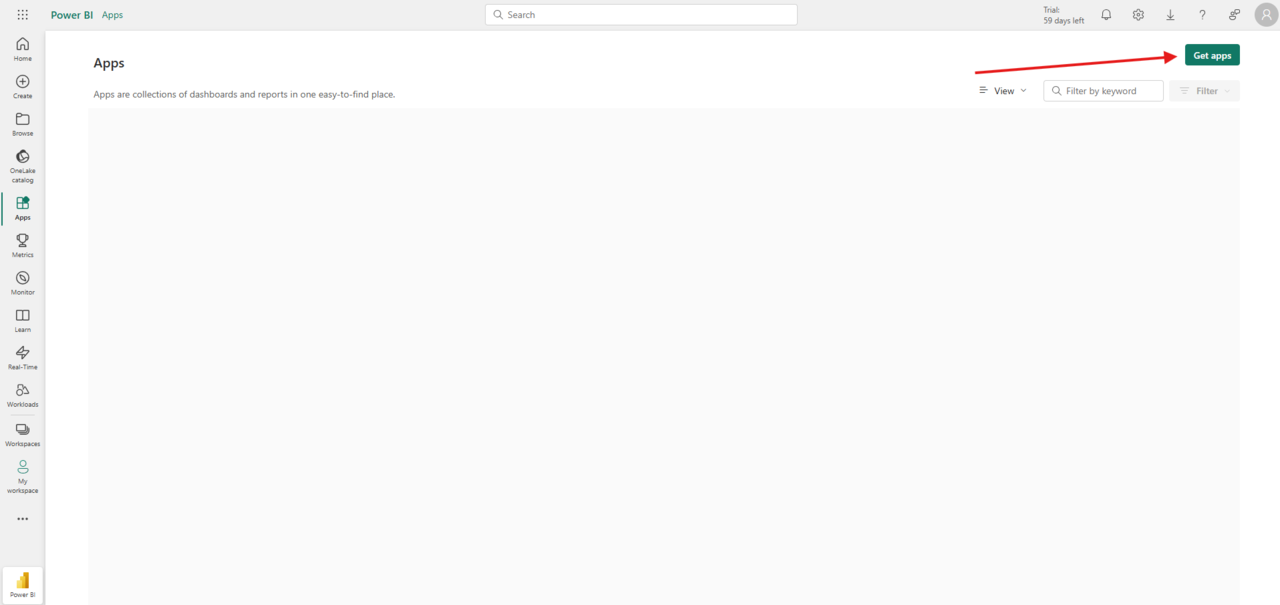
- In the left-hand menu, select Apps.
- Click Get Apps.
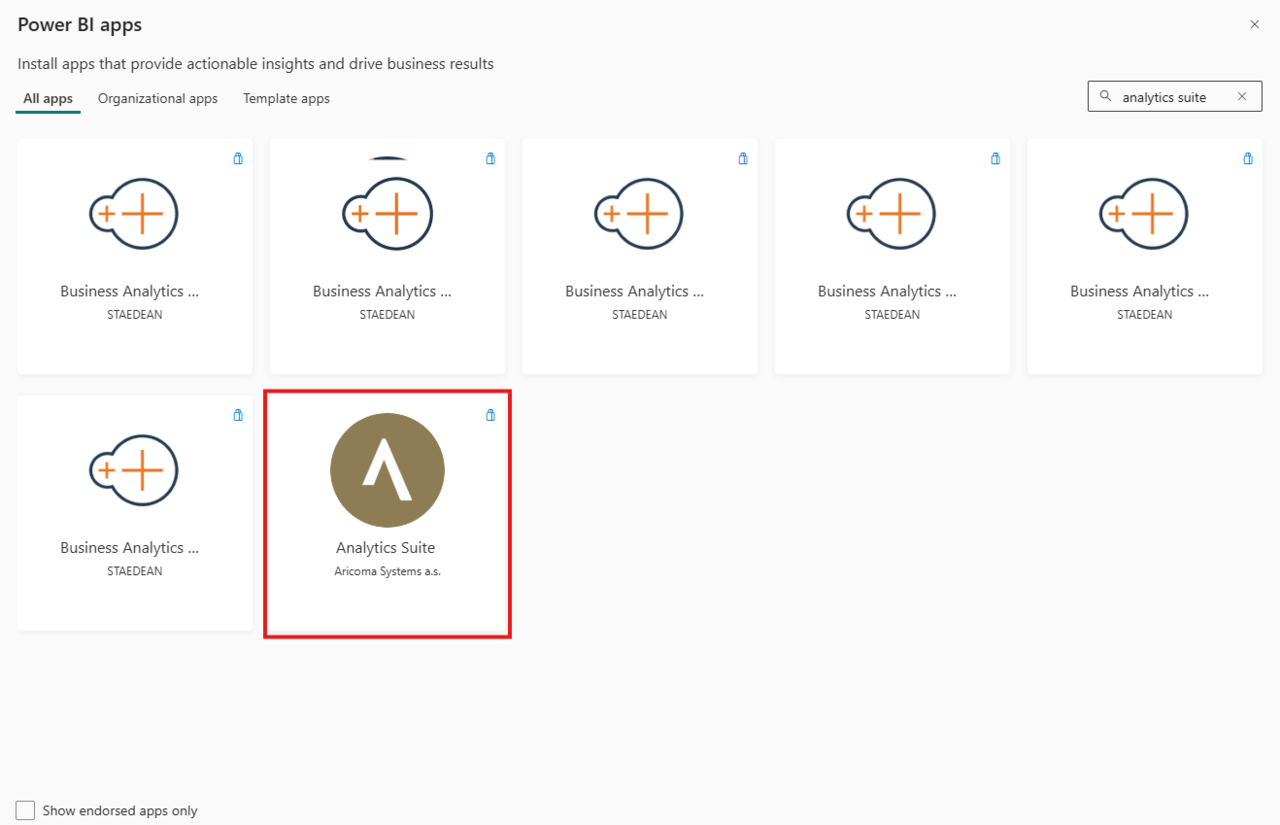
- In the search box, type Analytics Suite and select the app by Aricoma.
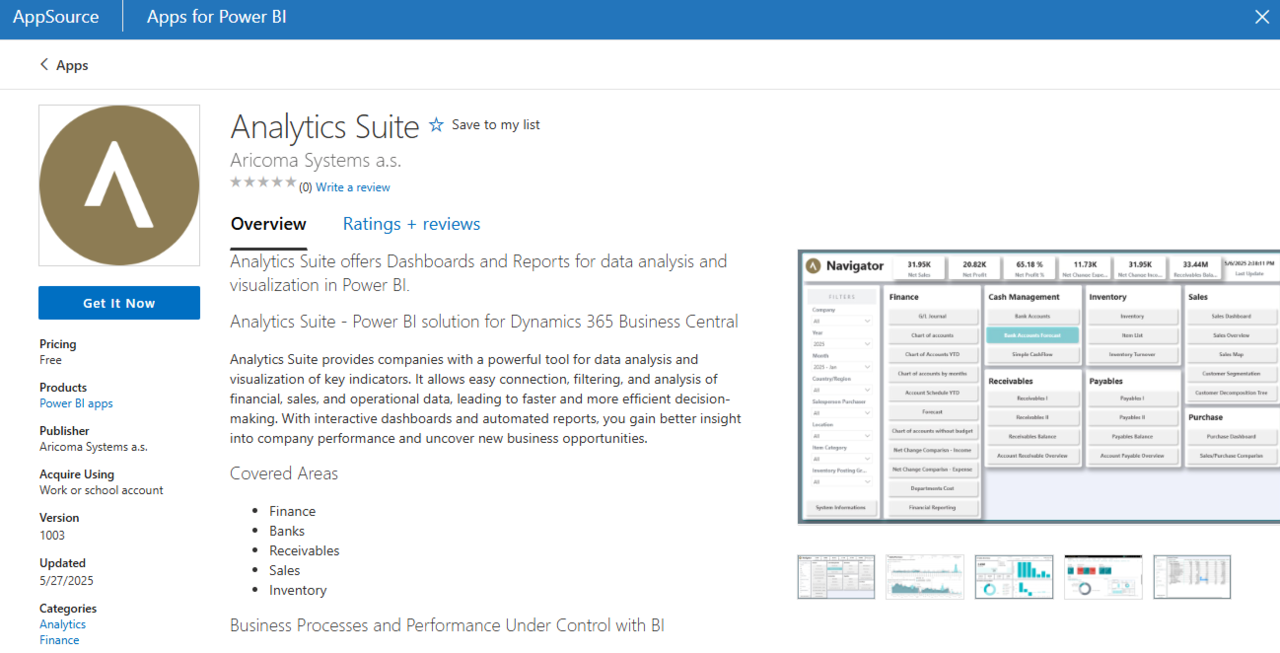
- Click Get it now and install the application.
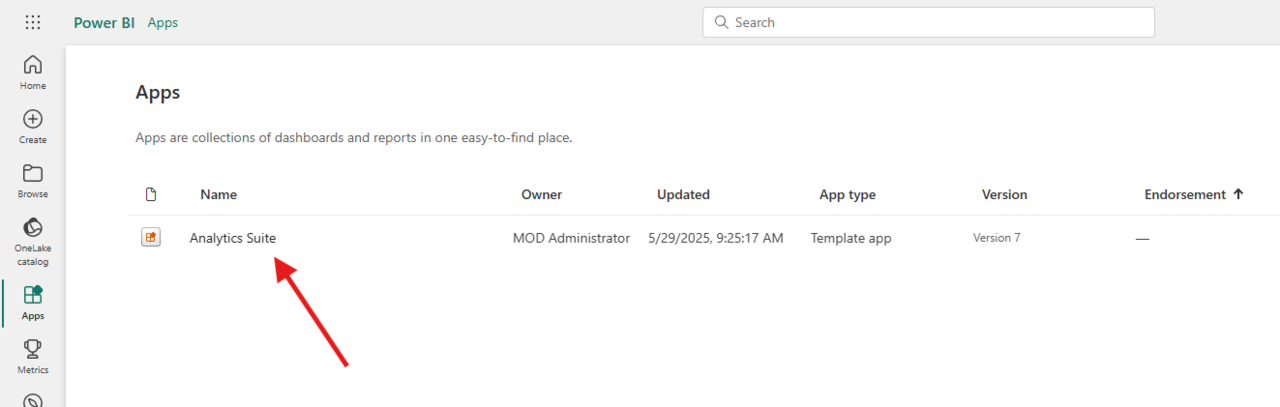
- Open the Analytics Suite app in the relevant workspace.
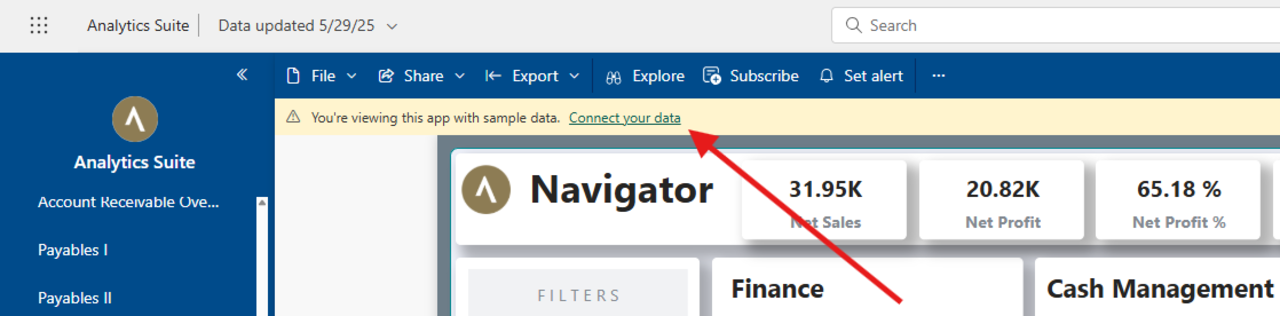
- Click Connect your data.
- In the EnvironmentName field, enter the name of your Business Central environment.